
In this article, you'll create your first ChipVerify Lab project, add three files, and write the RTL for a 4-bit universal shift register with parallel load and bidirectional shift. This is the design the entire series builds on, so the code here is the complete, final listing — later chapters reference it rather than repeating it.
6 min read | Beginner Level
What You'll Learn
- How to create a new project and add files in ChipVerify Lab
- The basics of the editor — syntax highlighting and the Outline panel
- How to write a small hierarchical design: one submodule instantiated four times under a top module
- How autosave and manual saving keep your project safe
Creating a New Project
From the File menu (or the New Project toolbar button), start a new project. There's no name prompt at this point — it resets your workspace to ChipVerify Lab's default starter files after a confirmation dialog, since it will discard any unsaved work in your current workspace. You'll name the project later, the first time you save it.

The Files Panel
Clear out the default starter files - right click on the file name and delete.

Add three of your own using the + ("New file") button in the Files panel.

Each one opens a small dialog for the filename, and the panel hints at what it thinks the file is as you type: a name ending in .v/.sv is treated as a design file, a name containing test (like the testbench below) is auto-detected as a testbench, and a .sdc file is treated as timing constraints for STA. Naming your testbench with test somewhere in it now saves you from having to point ChipVerify Lab at the right file by hand later.
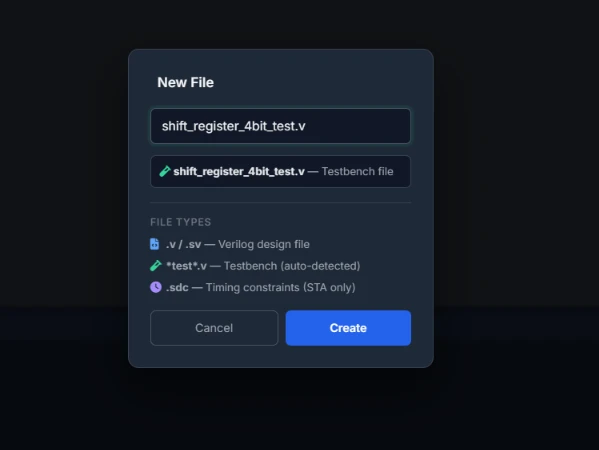
Add:
shift_reg_bit.v— the one-bit submodule (a small mux feeding a D flip-flop)shift_register_4bit.v— the top-level module, instantiatingshift_reg_bitfour timesshift_register_4bit_test.v— the testbench you'll run in Chapter 2
Keeping the design files and the testbench as separate files — rather than one file with everything in it — is what lets ChipVerify Lab (and you) tell design code apart from verification code once a project grows. Note the auto-detection only looks at the file name — the module declared inside can be named anything, which is why the testbench file below is shift_register_4bit_test.v but its module is still called shift_register_4bit_tb.
You can right click on the file name to rename and delete. You can also rearrange files by dragging a file into selected position within the file list in Files panel.
The Editor
Click into any file and you get full Verilog syntax highlighting and matching-bracket support.

Alongside the editor, the Outline panel lists every module, task, function, and parameter declared in the current file as a clickable, jump-to-line tree — useful once a file has more than a screen's worth of code, and worth opening now so it's already in view once the files below are in place.

Writing the Submodule: shift_reg_bit.v
Each bit of the register is the same small circuit: a mux chooses between the parallel-load value and the shifted-in value from a neighbor, and a D flip-flop captures whichever the mux selects on the next clock edge.
// One bit of a universal shift register.
// A 2-way mux (load overrides direction) feeds a D flip-flop.
module shift_reg_bit (
    input  wire clk,       // Clock — the flip-flop updates on its rising edge
    input  wire rst,       // Active-high, asynchronous reset
    input  wire load,      // 1 = load d_load into this bit, overriding dir
    input  wire dir,       // 0 = shift right, 1 = shift left (ignored when load = 1)
    input  wire d_right,   // Value from the neighbor bit used when shifting right
    input  wire d_left,    // Value from the neighbor bit used when shifting left
    input  wire d_load,    // Parallel-load value for this bit
    output reg  q          // This bit's stored value
);
    // Direction mux: pick the neighbor value based on dir
    wire d_shift = dir ? d_left : d_right;

    // Load mux: load takes priority over shifting
    wire d_next  = load ? d_load : d_shift;

    // The flip-flop itself — captures d_next on every rising clock edge
    always @(posedge clk or posedge rst) begin
        if (rst) q <= 1'b0;   // Reset clears this bit to 0
        else     q <= d_next; // Otherwise capture the mux output
    end
endmodule
Quick Check
Q: If load and dir both change on the same clock edge, which one wins?
Show Answer
load wins — the load mux is evaluated after the direction mux, so d_load reaches the flip-flop whenever load = 1, regardless of what dir is doing.
Writing the Top Level: shift_register_4bit.v
The top module wires four shift_reg_bit instances together in a chain, so each bit's shift-right neighbor is the bit above it, and its shift-left neighbor is the bit below it. The two end bits connect to serial in/out ports instead of a fourth neighbor.
// 4-bit universal shift register: parallel load, shift left or right.
module shift_register_4bit (
    input  wire       clk,
    input  wire       rst,
    input  wire       load,             // Parallel-load parallel_in (overrides dir)
    input  wire       dir,              // 0 = shift right, 1 = shift left
    input  wire [3:0] parallel_in,      // Value to load when load = 1
    input  wire       serial_in_right,  // Enters bit[3] when shifting right
    input  wire       serial_in_left,   // Enters bit[0] when shifting left
    output wire [3:0] parallel_out,     // Current register contents
    output wire       serial_out_right, // Exits bit[0] when shifting right
    output wire       serial_out_left   // Exits bit[3] when shifting left
);
    wire [3:0] q;                       // Internal bus — one wire per bit's output

    assign parallel_out     = q;
    assign serial_out_right = q[0];     // Rightmost bit is the shift-right exit point
    assign serial_out_left  = q[3];     // Leftmost bit is the shift-left exit point

    // Bit 0 (rightmost): its "left" neighbor is the external serial-in-left port
    shift_reg_bit bit0 (.clk(clk), .rst(rst), .load(load), .dir(dir),
        .d_right(q[1]), .d_left(serial_in_left), .d_load(parallel_in[0]), .q(q[0]));

    shift_reg_bit bit1 (.clk(clk), .rst(rst), .load(load), .dir(dir),
        .d_right(q[2]), .d_left(q[0]), .d_load(parallel_in[1]), .q(q[1]));

    shift_reg_bit bit2 (.clk(clk), .rst(rst), .load(load), .dir(dir),
        .d_right(q[3]), .d_left(q[1]), .d_load(parallel_in[2]), .q(q[2]));

    // Bit 3 (leftmost): its "right" neighbor is the external serial-in-right port
    shift_reg_bit bit3 (.clk(clk), .rst(rst), .load(load), .dir(dir),
        .d_right(serial_in_right), .d_left(q[2]), .d_load(parallel_in[3]), .q(q[3]));
endmodule
Writing the Testbench: shift_register_4bit_test.v
The testbench you'll run in the next chapter loads the value 1011, shifts right a few cycles, then flips direction and shifts left. You won't run it yet — that's Chapter 2 — but add it now so the project is complete.
`timescale 1ns/1ps

module shift_register_4bit_tb;
    reg        clk, rst, load, dir;
    reg  [3:0] parallel_in;
    reg        serial_in_right, serial_in_left;
    wire [3:0] parallel_out;
    wire       serial_out_right, serial_out_left;

    // Instantiate the design under test
    shift_register_4bit dut (
        .clk(clk), .rst(rst), .load(load), .dir(dir),
        .parallel_in(parallel_in),
        .serial_in_right(serial_in_right), .serial_in_left(serial_in_left),
        .parallel_out(parallel_out),
        .serial_out_right(serial_out_right), .serial_out_left(serial_out_left)
    );

    always #5 clk = ~clk;   // 10ns clock period

    initial begin
        $dumpfile("shift_register_4bit.vcd");   // Needed for the Chapter 2 waveform
        $dumpvars(0, shift_register_4bit_tb);

        clk = 0; rst = 1; load = 0; dir = 0;
        parallel_in = 4'b0000;
        serial_in_right = 0; serial_in_left = 0;

        #12 rst = 0;                       // Release reset partway through a cycle

        @(negedge clk);
        load = 1; parallel_in = 4'b1011;   // Parallel-load 1011
        @(negedge clk);
        load = 0;

        dir = 0; serial_in_right = 0;      // Shift right, zeros fed in from the left
        repeat (4) @(negedge clk);

        dir = 1; serial_in_left = 1;       // Shift left, ones fed in from the right
        repeat (4) @(negedge clk);

        #20 $finish;
    end

    initial $monitor("t=%0t rst=%b load=%b dir=%b parallel_out=%b",
                      $time, rst, load, dir, parallel_out);
endmodule
Saving Your Work
Saving is a separate concern: it's what persists your files to the project itself. An autosave runs every few minutes on a named project and shows its status (Saving…, Saved, Unsaved changes) in the corner of the screen, so most of the time you don't need to think about it. Use the explicit Save Project action (or its keyboard shortcut) yourself right before closing a tab or stepping away, so you're not relying on the autosave timer catching your very last edit.

ChipVerify Lab runs jobs against whatever is currently in the editor, so you don't have to save before running the simulation in Chapter 2 — a fresh edit takes effect immediately.
Common Mistakes
Mistake #1: Naming a file so ChipVerify Lab guesses the wrong type
The Files panel decides what a file is purely from its name as you type — a file needs test somewhere in its name to be auto-detected as a testbench. Naming it something like tb.v or bench.v instead gets treated as an ordinary design file, which can affect how other tools in this series pick a default top module. Check the type hint in the New File dialog before confirming, not after.
Mistake #2: Clicking through the New Project confirmation without reading it
New Project resets your entire workspace to ChipVerify Lab's default starter files, discarding anything unsaved in the process. The confirmation dialog exists specifically to stop this from happening by accident — don't reflexively click it away, especially if you have another project's work open in the same tab.
Mistake #3: Relying entirely on autosave right before closing the tab
Autosave runs on an interval, not on every keystroke — it's a safety net, not a substitute for saving deliberately. If you close the tab or your browser crashes seconds after an edit, you can lose whatever hasn't been autosaved yet. Get in the habit of saving manually before you step away.
Where Is This Used?
Separating design files from testbench files, and building a design out of one small, reusable submodule instantiated multiple times, is standard practice in real RTL projects — it's the same reason a 64-bit ALU is usually built from one 1-bit slice repeated 64 times rather than written out flat.
Practice Exercise
Challenge: Test the File-Type Auto-Detection
Open the New File dialog and try a few candidate names for the testbench before settling on the final one — bench.v, shift_register_4bit_tb.v, and shift_register_4bit_test.v — and watch how the type hint changes each time.
Hint
Only one of the three names contains the literal substring the auto-detection looks for.
Solution
Only shift_register_4bit_test.v gets flagged as a testbench — the other two, despite clearly being testbench-style names to a human reader, get the plain "Verilog design file" hint because neither contains test.
Summary
In this tutorial, you learned:
- How to create a project and add files in ChipVerify Lab's Files panel
- The editor's syntax highlighting and the Outline panel
- How to build a small hierarchical design from one submodule instantiated four times
- That
loadalways takes priority overdirin this design's mux logic - How autosave and manual saving work together to keep your project safe
