
Everything so far has lived only inside ChipVerify Lab. This article connects your project to GitHub and pushes it to a real repository — the first step toward treating your ChipVerify work like any other version-controlled codebase.
6 min read | Beginner Level
What You'll Learn
- How to connect your GitHub account
- How to push an existing ChipVerify project to a new or existing repository
- What "private by default" means when ChipVerify creates a repo for you
- Why connecting your account and pushing to it are gated differently
Connecting Your GitHub Account
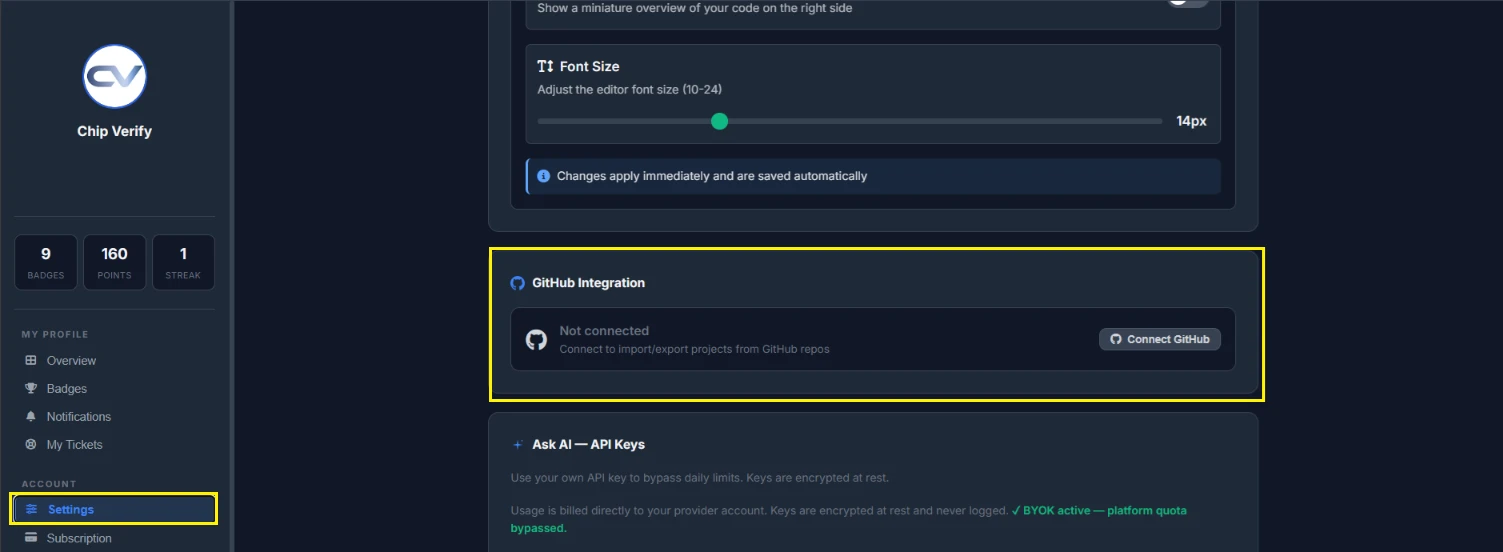
Open User Menu>Profile>Settings and find the GitHub Integration card, then click Connect GitHub. This redirects you to github.com to authorize ChipVerify, then brings you back with your account listed as connected. This step itself is available on FREE — it's what you do with the connection afterward that's gated (more on that below).
Pushing Your Project (Export to GitHub)
Open a project and look for an Export button in the Files panel banner.
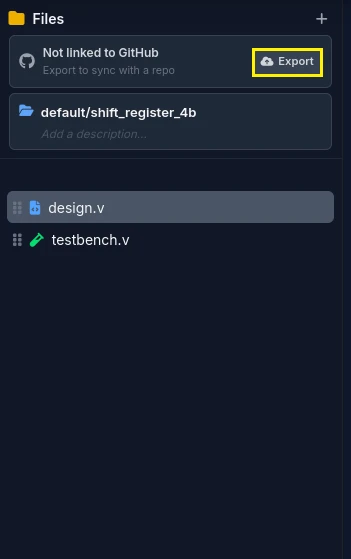
Or the GitHub icon action in the Project Browser's row for that project — either opens the Export to GitHub dialog.

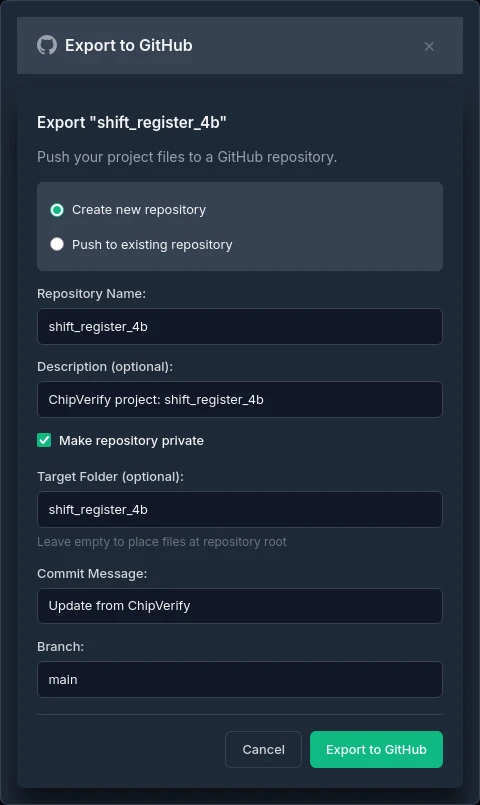
It asks you to choose between Create new repository and Push to existing repository. For a first push, choose Create new repository and fill in:
- Repository Name and Description
- Make repository private — checked by default. If you want the repo public, you have to uncheck this deliberately.
- Target Folder (optional) — push into a subfolder of the repo instead of its root
- Commit Message and Branch (both default to sensible values if you leave them alone)
Click Export to GitHub. Your project's files land in the repo as a single commit, with a generated README.md based on your project's description.
Exporting to GitHub requires the PRO tier, even though connecting your account is available on FREE. A FREE user can connect their account fine, and only sees the upgrade prompt when they actually try to export, import, or sync.
How the Project Browser Shows This
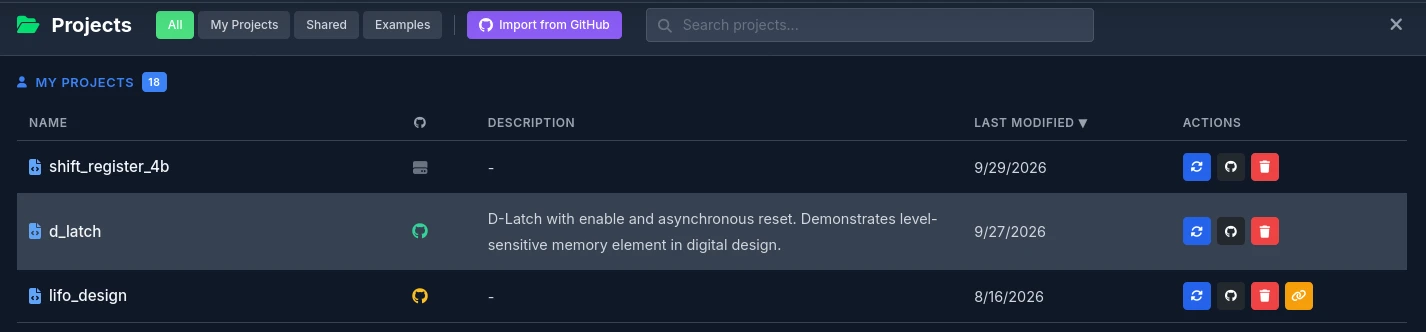
The Project Browser has a dedicated GitHub-status column. A project that's never been pushed shows a plain, gray icon ("local only"). Once you've exported it, the icon switches to a colored one showing whether it's currently in sync with the repo, and hovering it tells you which repo it's linked to. Green indicates the project is in sync, while yellow indicates there are changes in local that hasn't been pushed to Github yet.
Common Mistakes
Mistake #1: Assuming connecting your account means you can push
Connecting GitHub and exporting to it are two separately-gated actions. You can connect on FREE and see your account listed as linked, then hit an upgrade prompt the first time you actually try to export a project.
Mistake #2: Assuming a new repo is public unless you say otherwise
It's the opposite — Make repository private is checked by default. If you intended a public repo, you have to notice and uncheck that box yourself before exporting.
Mistake #3: Assuming Disconnect revokes GitHub's access to your account
Clicking Disconnect in ChipVerify only clears the connection on ChipVerify's side — it doesn't revoke the authorization on GitHub's end. If you want to fully remove ChipVerify's access, do that from your GitHub account's own authorized-apps settings.
Where Is This Used?
Linking a cloud IDE to a real git repository is standard practice for exactly this reason — the code's source of truth stays in git regardless of which tool you happened to edit it in that day.
Practice Exercise
Challenge: Push Twice, Two Different Ways
Export your shift-register project to a new repository, then make a small edit (a comment, for example) and export it again — this time choosing Push to existing repository instead of creating a new one. Confirm the Project Browser's GitHub-status icon reflects the sync afterward.
Hint
You'll pick the same repository you just created in the "Push to existing repository" flow's repository picker.
Solution
The second export adds a new commit to the same repository rather than creating a duplicate one. Back in the Project Browser, the project's GitHub-status icon should show it as in sync with the repo once the export completes.
Summary
In this tutorial, you learned:
- How to connect your GitHub account from Settings
- How to export a project to a new or existing GitHub repository
- That new repositories are private by default
- That connecting your account and exporting to it are gated separately
