
PPA gave you a whole-design view. STA gave you a whole-design timing view. This article covers the two panels that do the opposite: zoom into one specific cell or one specific net and show everything about just that.
7 min read | Beginner Level
What You'll Learn
- How to open Cell Info and read a single cell's electrical data
- How to open Connectivity and read a single net's drivers, loads, and slack
- How these differ from the schematic's plain click-to-highlight
- A corner mismatch worth knowing about before it confuses you
Cell Info: What It Shows
Cell Info requires the PRO tier. 
Click a cell in the schematic, or a row in the Hierarchy panel, and the Cell Info panel fills in with that instance's details: its Yosys instance name and standard-cell type (with a plain-language description of what that SKY130 cell actually does), its input and output ports with which net drives or receives each one, its Fanin/Fanout neighbor lists, and any STA timing paths it participates in (clickable through to the STA panel).
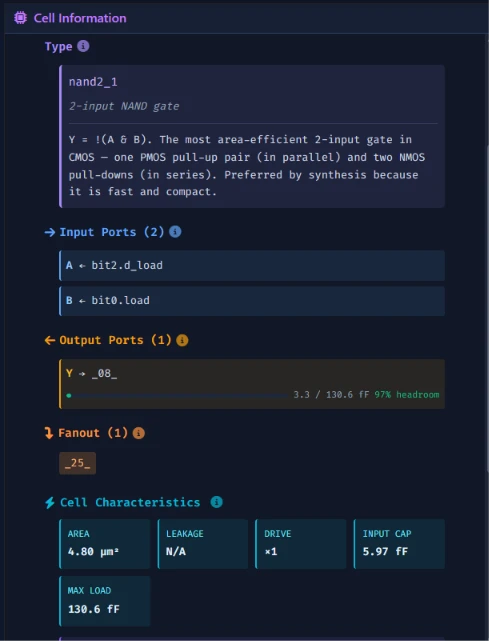
Below that, a Cell Characteristics section loads from the Liberty library: area, leakage power, drive strength, input capacitance, max load, a Boolean function line, worst-case rise/fall delay and slew, and a load bar comparing this cell's actual fanout capacitance against its Liberty max — useful for spotting a cell that's driving more than it comfortably should.
Connectivity: What It Shows
Connectivity requires the PRO tier. 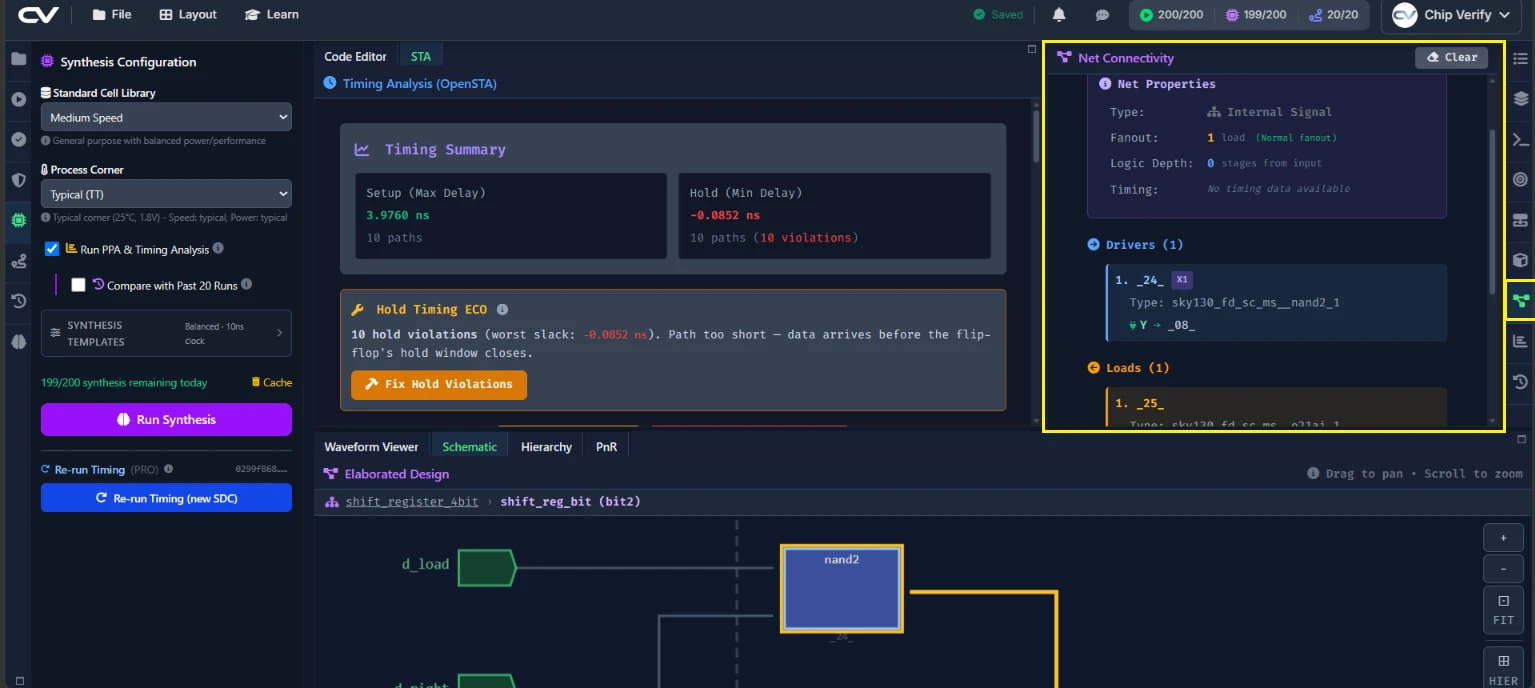
Click a net instead of a cell — either in the schematic or via a net link in the netlist viewer — and the Connectivity panel reports on that one net: its type (primary input/output, bidirectional, multi-driver, internal, or unconnected), a fanout count with a plain-language assessment of whether it's high enough to need buffering, its logic depth back to a primary input, and its setup/hold slack with a critical-path callout when relevant.
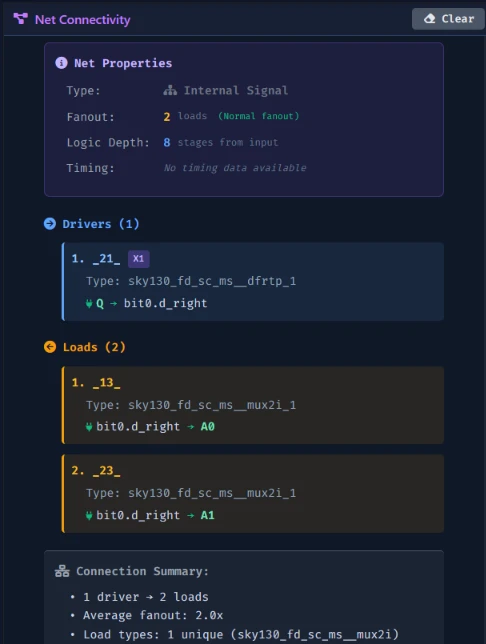
Below that, explicit Drivers and Loads lists show exactly which instances connect to this net and through which pin, ending in a summary that flags real problems like a missing driver or multiple drivers contending on the same net.
How This Differs From the Schematic Highlight You Already Know
The plain click-to-highlight from the schematic chapters is purely visual — it lights up a cell or net on the canvas and nothing more. Cell Info and Connectivity ride on that same click, but add the numeric layer underneath it: what that cell's drive strength actually is, what that net's slack actually is. Nor do they duplicate the PPA panel's Cell Breakdown table from earlier — Cell Breakdown is a design-wide count of how many of each cell type you used; Cell Info is the drill-down into one specific instance that Cell Breakdown has no equivalent for.
A Corner Mismatch to Watch For
Cell Info's Liberty data always comes from the nominal typical corner, regardless of which corner you ran STA at. If you've run STA at a fast or slow corner (PRO), don't be surprised if Cell Info's rise/fall delay numbers for the same cell don't match what the STA report showed — they're reading different data on purpose, not disagreeing by mistake.
Common Mistakes
Mistake #1: Clicking an instance in the netlist viewer, expecting Cell Info to open
It doesn't — clicking a netlist row highlights the instance on the schematic and switches you to the Elaboration tab, not Cell Info. To actually see Cell Info, click the now-highlighted cell in the schematic itself (or find it in the Hierarchy panel).
Mistake #2: Assuming a rise/fall delay mismatch means something is wrong
As covered above, Cell Info always shows nominal-corner Liberty data. Seeing a different number here than in a fast- or slow-corner STA report is expected, not a bug to chase.
Mistake #3: Not seeing Connectivity update in a maximized schematic
If the schematic panel is maximized when you click a net, Connectivity's content updates but the view doesn't automatically switch you to that tab. Un-maximize the schematic first if you want to see the panel switch happen.
Where Is This Used?
Drilling into one cell's drive strength and load headroom, or one net's fanout and slack, is exactly what a physical design engineer does when chasing a specific timing violation or a suspiciously overloaded net — not by staring at an aggregate report, but by clicking directly into the one instance or net that's actually the problem.
Practice Exercise
Challenge: Drill Into One Bit's Flip-Flop and Its Input Net
In the schematic, click into one of the four shift_reg_bit instances' flip-flop cells and read its Fanin/Fanout counts and Drive Strength from Cell Info. Then click the net feeding that flip-flop's data input and check Connectivity's Fanout and Logic Depth for that net.
Hint
The net you want is the mux output feeding the D input — the same d_next wire from Chapter 1's RTL.
Solution
The flip-flop's Fanin should trace back to the mux logic in the same bit slice, and its Fanout should be 1 (its own q output feeding the next stage or an external port). The d_next net's Connectivity should show a single driver (the mux) and a single load (the flip-flop's data pin) — a small, uncontended net, which is exactly what you'd expect for a design this size.
Summary
In this tutorial, you learned:
- How to open Cell Info from a schematic or Hierarchy-panel click and read its Liberty data
- How to open Connectivity from a net click and read its drivers, loads, and slack
- That both panels add a numeric layer on top of the schematic's existing highlight, rather than replacing it
- Why Cell Info's timing numbers always reflect the nominal corner, not whatever corner STA last ran at
