
With the RTL from Chapter 1 in place, it's time to prove it actually works. This article runs the testbench, reads the console output, and walks through the resulting waveform bit by bit.
7 min read | Beginner Level
What You'll Learn
- How to choose a simulator and run a testbench
- Where simulation output and errors show up
- How to open and read a waveform in the Surfer viewer
- How to match the shift register's waveform back to the testbench's stimulus
The Simulate Tab & Simulator Choice
Open the Simulate tab.
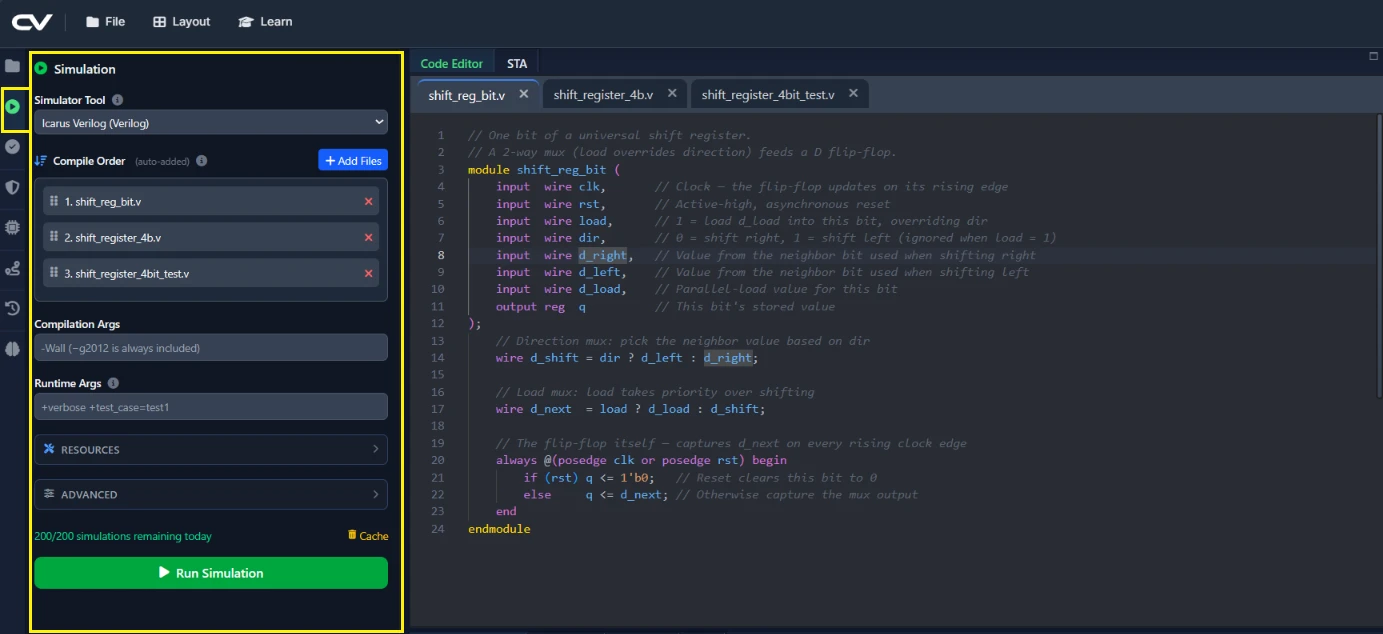
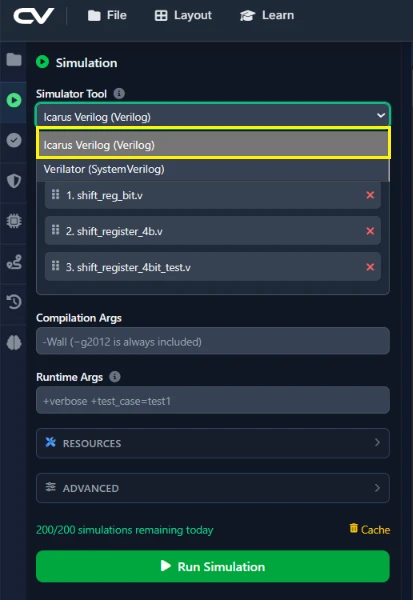
Find the Simulator Tool dropdown. It offers Icarus Verilog (Verilog) and Verilator (SystemVerilog) — both are available on the FREE tier. For a plain-Verilog testbench like this one, Icarus is the simpler choice: it's a traditional event-driven simulator that runs your code directly, with nothing to compile first. Verilator compiles your design into C++ before running it, which is what you actually need once a testbench uses SystemVerilog constructs or UVM — this platform's UVM support specifically runs on Verilator. For this chapter, pick Icarus Verilog.
Running the Simulation & Reading the Console
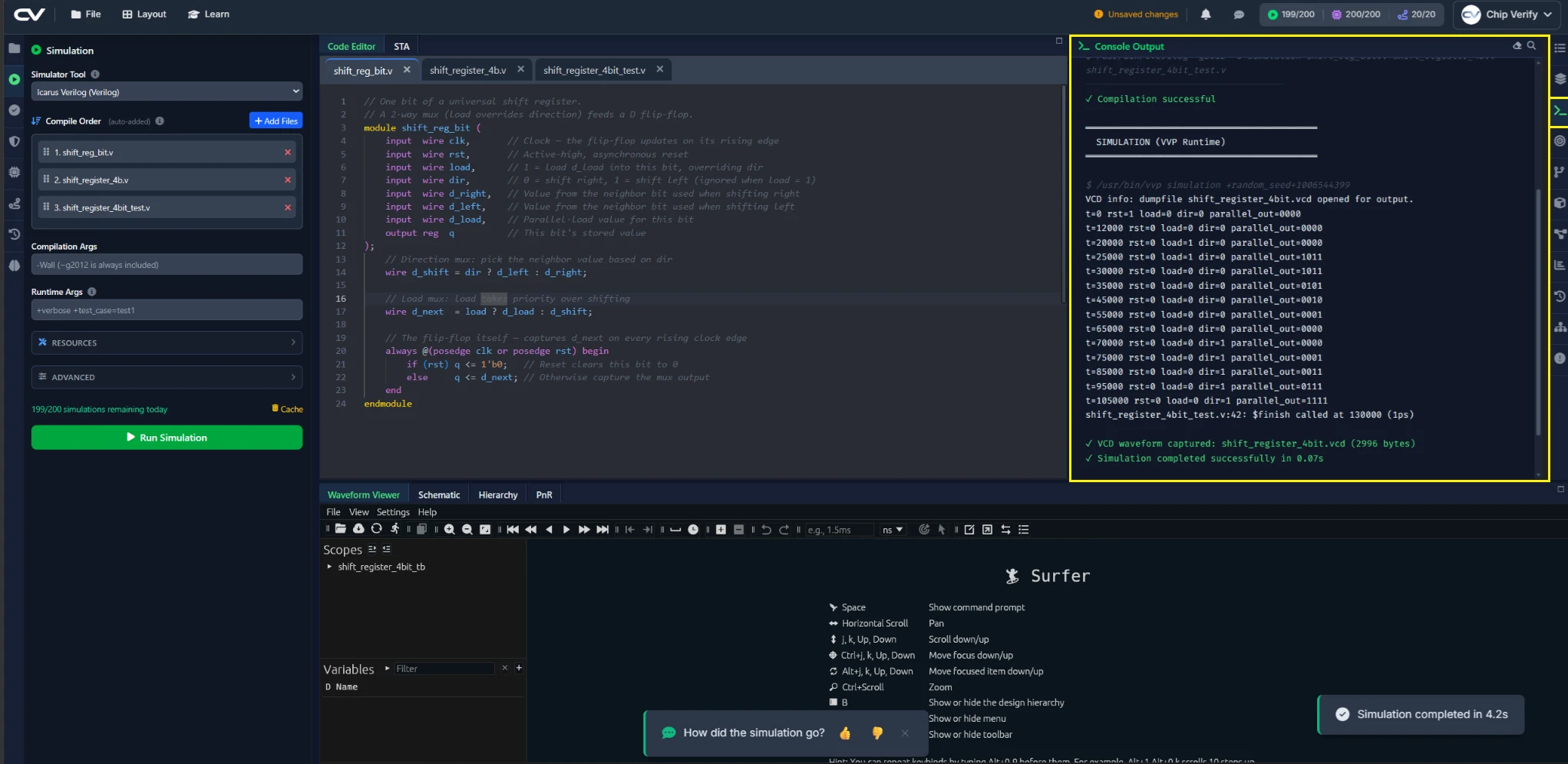
Click Run Simulation. Output streams into the Console panel, including compile messages, your testbench's $monitor line printed once per timestep, and a final pass/fail summary. If the waveform looks wrong afterward, check the console first — a compile error there is the most common root cause.
Opening the Waveform Viewer
The waveform viewer opens on its own once the run finishes — you don't need to hunt for a button to launch it. Add parallel_out (and load/dir if you want to watch the controls alongside it) to the signal list. You can resize any panel by dragging the blue bar (visible upon mouse hover) or click on the maximize button on the far right corner of the panel.
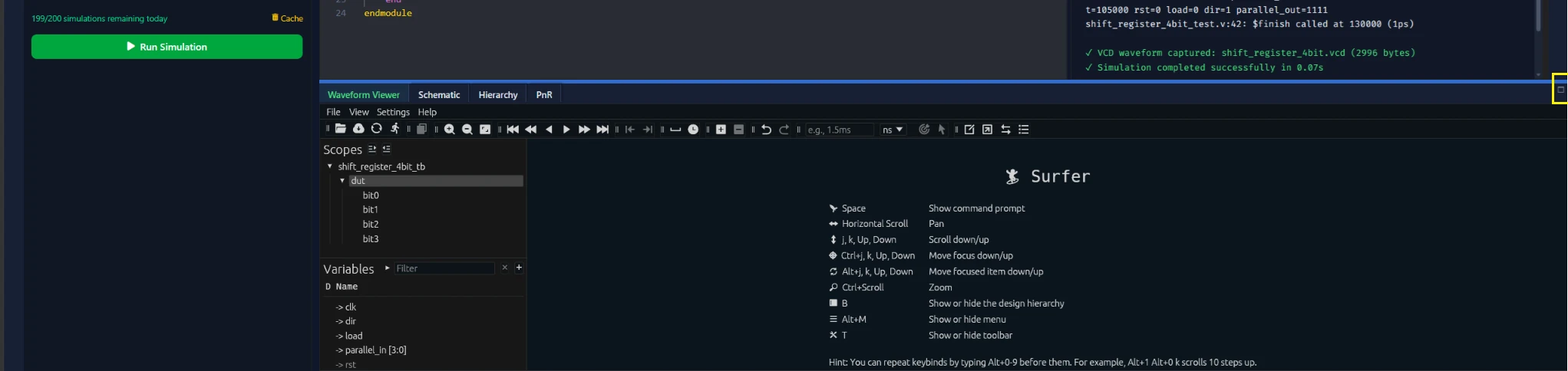
Every simulation run generates a VCD automatically now, even if a testbench doesn't include $dumpfile/$dumpvars itself — but it's still worth keeping those two lines in your testbench, as Chapter 1's does, since they're what make the same testbench dump a waveform if you ever run it outside ChipVerify Lab too.
Reading the Shift-Register Waveform
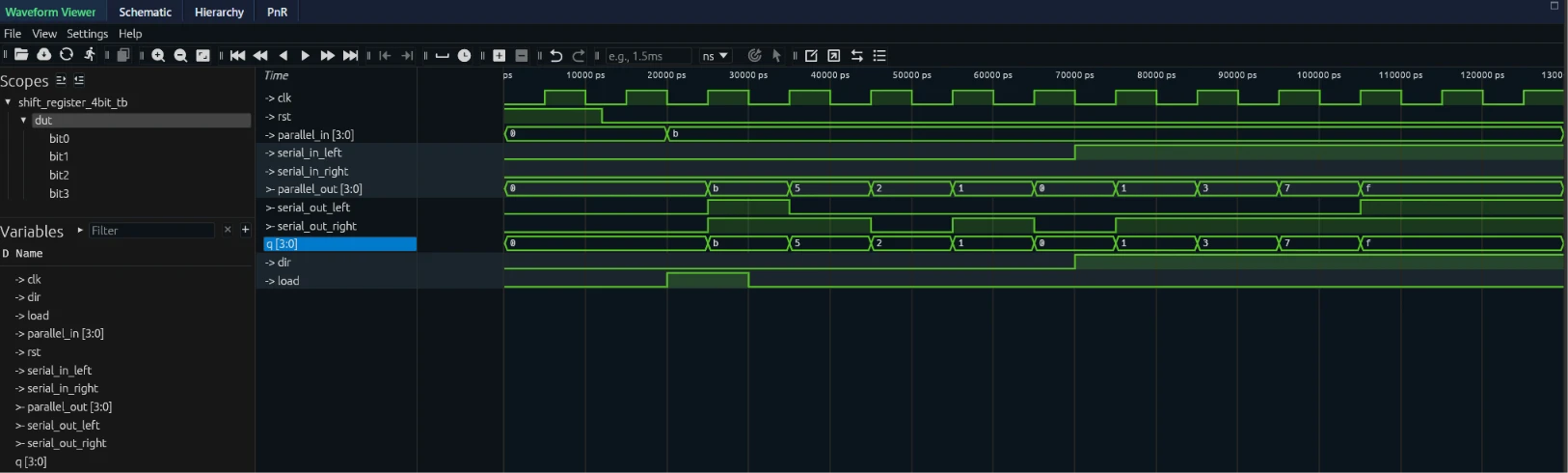
Follow parallel_out across the run:
load = 1for one cycle —parallel_outjumps straight to1011dir = 0(shift right) for four cycles — the value drains rightward, with zeros filling in from the left asserial_in_rightis held at 0dir = 1(shift left) for four cycles — ones shift in from the right asserial_in_leftswitches to 1
Common Mistakes
Mistake #1: Reaching for Verilator by default
Verilator's extra compile step and SystemVerilog/UVM support aren't needed for a plain Verilog testbench like this one — Icarus runs it just as correctly and with less setup. Save Verilator for when your testbench actually needs SystemVerilog or UVM constructs.
Mistake #2: Only adding parallel_out to the waveform
Watching just the output makes every transition look like a mystery — you can see the value change but not why. Add load and dir to the signal list alongside parallel_out so the waveform explains its own behavior instead of making you guess at it.
Mistake #3: Eyeballing the whole run at the default zoom level
At the default zoom, several clock edges can compress into a space too small to tell exactly which one a signal changed on. Zoom into the waveform around the transition you care about before trying to read it precisely.
Where Is This Used?
Simulation before synthesis is a universal sign-off gate in real RTL flows — no team spends synthesis or place-and-route compute time on a design that hasn't first passed its testbench in simulation.
Practice Exercise
Challenge: Compare Both Simulators
Run the testbench once with Icarus Verilog, then switch the Simulator Tool dropdown to Verilator and run it again without changing anything else. Compare the two Console outputs.
Hint
Look at what happens before the simulation itself even starts — one of the two tools has an extra step the other doesn't.
Solution
Verilator's console log shows a compile step before simulation begins, since it translates your design to C++ first; Icarus goes straight to simulating. The $monitor output and final result should otherwise match, since the two simulators are running the same testbench against the same design.
Summary
In this tutorial, you learned:
- How to choose between Icarus Verilog and Verilator in the Simulate tab
- Where simulation output lands (the Console panel)
- How to open a VCD in the Surfer waveform viewer
- How to trace the shift register's load, shift-right, and shift-left phases in the waveform
