
The previous article pushed a project out to GitHub. This one goes the other direction: bringing a repository in as a new project, and pulling later changes into a project that's already linked.
6 min read | Beginner Level
What You'll Learn
- The difference between Import and Pull, and when to use each
- How to import an existing GitHub repo as a new ChipVerify project
- How to pull the latest changes into a project that's already linked
- What the sync tool will — and won't — warn you about
Import vs. Pull: The Core Distinction
Import creates a brand-new ChipVerify project from a GitHub repo — it's the "bring this repo in for the first time" action. Pull updates a project that's already linked to a repo with whatever changed there since your last sync. They're separate buttons for separate situations: use Import when the project doesn't exist in ChipVerify yet, and Pull when it does and you just want the latest version of it.
Import and Pull both require the PRO tier, the same as Export from the previous article.
Importing a Repo as a New Project
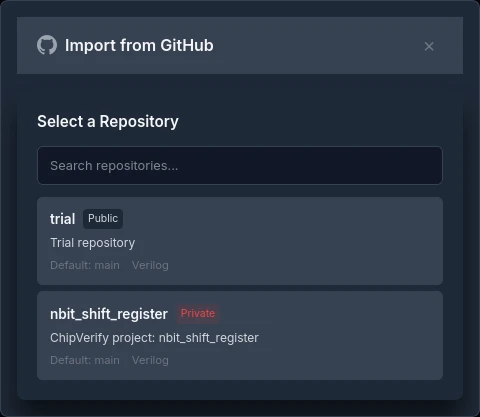
In the Project Browser's filter bar, click Import from GitHub.

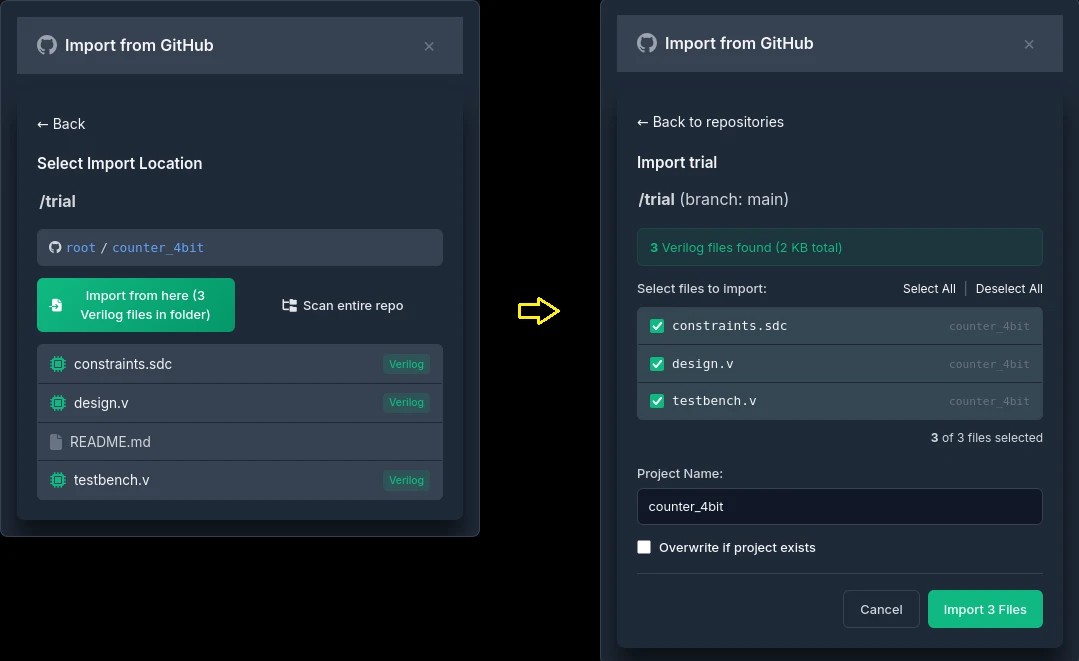
Pick a repository, then either scan the entire repo or browse into a specific folder, and select which .v/.sv/.sdc files to bring in.
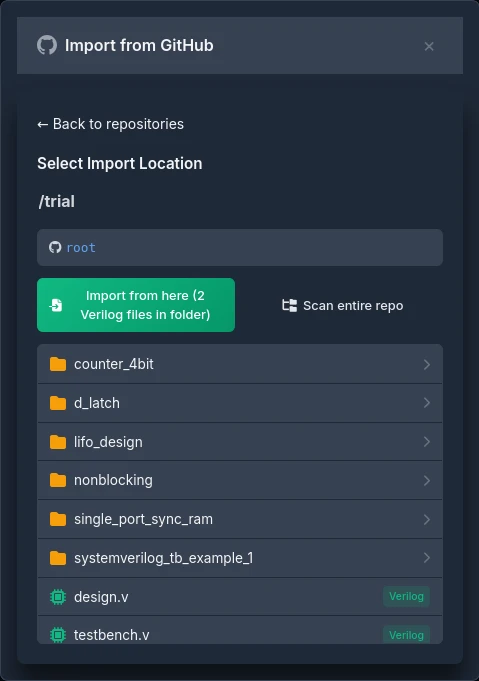
Set a Project Name, and check Overwrite if project exists only if you're intentionally replacing a project you already have with that name. Click Import.
Pulling Changes Into a Linked Project
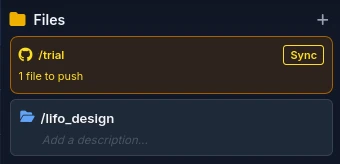
For a project that's already linked (shows a colored icon in the Project Browser, not the gray "local only" one), open Sync with GitHub — from the Project Browser row's sync icon, or the Sync button in the Files panel banner. It reports one of four states: In Sync, Local Ahead, Remote Ahead, or Conflict. If the repo has changes you don't have locally, click Pull to bring your local files up to date with it.
What Counts as a "Conflict" (and What Doesn't)
The sync tool only flags a Conflict in a specific situation: when you've added or modified files locally and the remote is missing something you have. If the same file has been edited both locally and on GitHub, that's shown as ordinary "modified" — not flagged as a conflict — and clicking Pull or Push will overwrite one side with no attempt to merge them line by line. Know this going in, especially if you've been editing the same file from more than one place.
Common Mistakes
Mistake #1: Using Import when you meant to Pull
Import is for repos you don't already have as a ChipVerify project. If the project already exists and is linked, use Pull instead — Import will refuse to overwrite it unless you explicitly check "Overwrite if project exists."
Mistake #2: Assuming a same-file edit on both sides will be flagged
As covered above, it won't be treated as a Conflict — it just shows as "modified." If you know you've changed a file both locally and upstream, check the file's content on both sides yourself before pulling or pushing.
Mistake #3: Not checking "Overwrite if project exists" when re-importing
Re-running Import into a project name you already have, without that checkbox, fails with a name-collision error rather than silently doing nothing — that's expected, not a bug, but it's easy to be confused by the error the first time you hit it.
Where Is This Used?
Pulling the latest changes before continuing work is standard git hygiene in any environment — the habit doesn't change just because you're editing in a browser-based IDE instead of a local one.
Practice Exercise
Challenge: Round-Trip a Change Through GitHub
Import the repository you exported in the previous article as a new ChipVerify project under a different name. Then, directly on github.com, edit a comment in one of the files and commit it. Back in ChipVerify, open Sync with GitHub on your imported project and use Pull to bring that edit in.
Hint
The Sync modal should report "Remote Ahead" once you've made the edit on github.com and before you've pulled.
Solution
After the Pull, the file in your ChipVerify project should show the exact edit you made on github.com, and the Sync modal should report "In Sync" again — confirming the round trip worked in both directions across the two articles.
Summary
In this tutorial, you learned:
- The difference between Import (new project) and Pull (existing linked project)
- How to import a GitHub repo as a new ChipVerify project
- How to pull remote changes into an already-linked project
- Why a same-file edit on both sides won't be flagged as a conflict
