
When a test fails, the first thing a verification engineer looks at is the simulation log — the printed output from $display and assertion messages that pinpoints what went wrong and at what time. But log messages alone rarely tell you why it went wrong. That is when you open the waveform viewer, load the signals around the failure point, and trace the problem back to its source. Knowing how to read a waveform quickly — which signals to look at, what patterns indicate a bug, and how to navigate efficiently — is one of the most practical skills in the verification workflow.
9 min read | Intermediate Level
What You'll Learn
- What a waveform viewer displays and how the key elements are arranged
- Which signals to include in every waveform view and why
- How to recognise glitches, X states, and Z states from their waveform appearance
- A systematic debug flow for tracing a failure back to its root cause
What a Waveform Viewer Shows
A waveform viewer — tools like GTKWave, Verdi, SimVision, or DVE — displays the value of every signal in your design plotted against simulation time. The horizontal axis is simulation time. The vertical axis within each signal row represents the signal's logic value: high, low, unknown (X), or high-impedance (Z). Multi-bit buses are shown as filled rectangles labelled with their current value in hex or binary rather than as individual waveform lines.
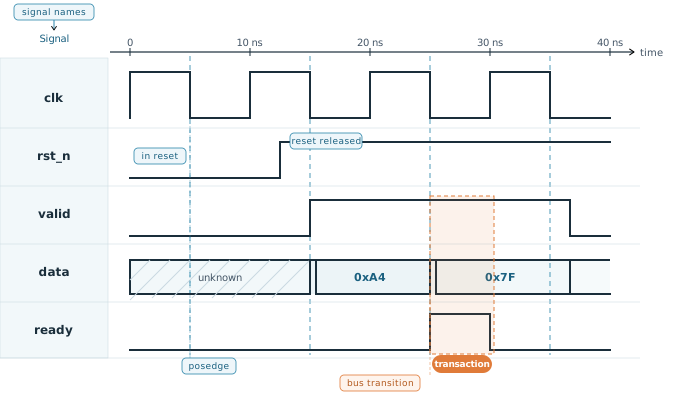
The signal name column on the left lists every signal you have added to the view. Waveform viewers do not automatically show every signal in the design — you select which ones to display, either by dragging from a hierarchy browser or by writing a save file that lists the signals of interest. The time axis typically shows simulation time in nanoseconds or picoseconds depending on the `timescale your design uses.
Waveform dump files — VCD (Value Change Dump), FSDB, or SHM format depending on the simulator — capture every signal transition during simulation and are read by the waveform viewer after or during the run. Dumping every signal in a large design produces enormous files; most engineers limit dumps to specific hierarchy levels or signal groups.
Key Signals to Always Include
A good waveform view is not every signal in the design — that would be overwhelming. It is a curated set that gives you enough context to understand what the DUT is doing at any moment. For almost any block, the following signals should always be present:
- Clock(s) — the heartbeat of the design. Every other signal is interpreted relative to clock edges. Without the clock visible, you cannot determine whether a value change happened at the right cycle.
- Reset — verifying that reset is asserted for the correct duration and deasserted cleanly relative to the clock edge catches an entire class of initialisation bugs before you look at anything else.
- Valid and ready handshake signals — in AXI and similar protocols, a transaction only occurs when both
validandreadyare high on the same rising clock edge. Checking these two signals first tells you immediately whether transactions are actually being transferred. - Key data buses — the address, data, and control signals relevant to the transaction you are investigating. Display them in hex for readability; binary is only useful when you need to inspect individual bits.
- State machine encoding signals — if your DUT contains an FSM, add the state register to the view. Most waveform tools can decode the binary encoding into named states if you provide a definition file.
Quick Check
Q: In an AXI-style handshake, valid is high for three consecutive cycles but ready is only high during the second cycle. How many transactions transferred?
Show Answer
One transaction. A transfer only occurs when both valid and ready are high simultaneously on the same rising clock edge. The first and third cycles have valid high but ready low, so no transfer occurs on those cycles.
Recognising Bug Signatures
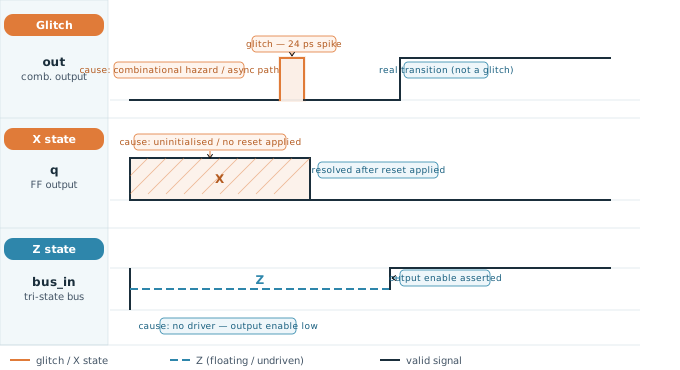
Experienced engineers learn to recognise certain waveform patterns as immediate indicators of specific bug categories. The three most important are glitches, X-propagation, and Z states.
Glitches
A glitch is a brief, unwanted pulse on a signal — it goes high (or low) for a very short time and then returns to its original level. Glitches appear in combinational logic when multiple signal paths feeding a gate have different propagation delays. The gate briefly sees an inconsistent combination of inputs and produces a spurious output before the slower path catches up.
In zero-delay RTL simulation, glitches appear as delta-cycle spikes: the signal changes value and then changes back within the same simulation timestep. In waveform viewers they appear as very narrow spikes that may be invisible if you are zoomed out. When you spot unexpected behaviour on a combinational output, zoom in to check whether there is a glitch underneath.
Glitches on clock enable signals or chip select lines are particularly dangerous — even a very short glitch can latch incorrect data into a register or corrupt a memory write. If you see a glitch on any signal feeding a clock or enable input, treat it as a critical bug.
X-Propagation
An X value in simulation means the simulator cannot determine whether the signal is 0 or 1. It is displayed as a hatched or filled band between the high and low rails and typically appears red or orange in colour-coded viewers. Common causes include:
- Uninitialised registers — a flip-flop that has never been reset starts in state
X. Its output propagatesXto everything downstream. - Reset not applied — the design emerged from reset too early, or the reset pulse was too short for all registers to initialise.
- Unresolved bus contention — two drivers simultaneously driving a wire to opposite values produces
X.
X values propagate through logic according to the rules of four-valued simulation. An AND gate with one X input and one 1 input produces X — because the result depends on the unknown. An AND gate with one X input and one 0 input produces 0 — the zero dominates regardless of the unknown. Tracking X-propagation backward to its source is one of the most common debugging tasks in early simulation bring-up.
When you see an unexpected X on a signal, trace it backward in the waveform to find where it first appeared. The originating signal is almost always a register that was never reset, or a bus with a missing or mistimed driver.
Z State
A Z value means the signal has no driver — it is floating at high impedance. In waveform viewers Z typically appears as a dashed line at mid-rail. Common causes include:
- Tri-state output enable not asserted — a tri-state buffer is present but its enable pin is low, so no value is driven onto the bus.
- Missing
assignstatement — a wire declared in the design has no continuous driver. - Incorrect port connection — a module port is left unconnected in an instantiation.
Z propagates differently from X: most standard logic gates treat a Z input as X, so a floating signal quickly produces X downstream. If you see X appearing unexpectedly, check whether the source signal is Z rather than being driven to an incorrect known value.
Navigating Large Waveforms
A simulation of millions of clock cycles produces a waveform spanning a huge time range. Scrolling through it manually is impractical. Waveform viewers provide several navigation tools that most engineers underuse:
- Cursors and markers — place a cursor at any point on the time axis to read the exact simulation time and signal values at that moment. Most viewers support two cursors so you can measure the time interval between two events. Markers let you tag specific time points with a name so you can jump back to them quickly.
- Signal value search — search for the next occurrence of a specific value on a signal (for example, "find next time
err_flag = 1"). This is far faster than scrolling to find an assertion failure or an unexpected state transition. - Edge search — find the next rising or falling edge on a selected signal. Useful for jumping between individual clock edges or transaction boundaries.
- Zoom to region — zoom out to see the full simulation at once, identify the approximate region where the failure occurs by the visual shape of the waveform, then zoom in to the detail.
Save your waveform view configuration — the list of signals, their grouping, colour coding, and bus radix settings — to a file at the start of a debug session. Without a saved view, you rebuild the same signal list every time you re-run the simulation, which wastes significant time over a long debugging session.
The Waveform Debug Flow
A structured approach to waveform debugging saves significant time compared to browsing signals at random. The key principle is: start at the symptom and trace backward to the cause.
- Step 1 — Find the failure point. Identify the exact simulation time where the scoreboard or assertion flagged an error. Use that timestamp as your starting point. Place a cursor there.
- Step 2 — Read the output. Look at the signal that was wrong. Was it the wrong value? Was it
X? Was it asserted a cycle too late? The nature of the wrong value gives you information about the category of bug. - Step 3 — Trace the fanin. Identify which signals feed into the wrong output — the inputs to the logic that computed the bad value. Check each of those signals at the same timestep. Find which one was wrong.
- Step 4 — Step backward in time. For the signal you identified as wrong in step 3, move the cursor backward to find when it first took the wrong value. Was it wrong from reset? Did it flip at a specific edge?
- Step 5 — Repeat until the root cause. Continue tracing backward through the logic hierarchy until you find the signal that was the original source of the wrong value — this is your RTL bug. It is often a missing reset, a wrong condition in an
ifstatement, or an off-by-one in a counter.
Where This Skill Matters
In a typical verification project, roughly half of all debugging time is spent in the waveform viewer. Engineers who can read waveforms efficiently — who know immediately which signals to add, where to look first, and how to trace backward through logic — resolve bugs in minutes rather than hours. This skill compounds over a career: every debug session teaches you to recognise new patterns faster.
Quick Check
Q: You open a waveform and see that a signal out_valid is stuck at X for the first 40 ns of simulation, then resolves to 0. What is the most likely root cause, and where should you look first?
Show Answer
The most likely cause is that the register driving out_valid has no reset, or that reset was not asserted for those first 40 ns. Start by checking the reset signal in the waveform — confirm it was actually asserted and held long enough. Then trace out_valid back to its source register and verify that register has an active reset condition in the RTL.
Common Mistakes
Mistake 1: Adding too many signals to the waveform view before starting to debug.
Wrong: Dumping and displaying every signal in the design hierarchy hoping to spot the problem by browsing.
Right: Start with clock, reset, and the specific interface signals at the failure point. Add more signals only as the trace leads you deeper into the design.
Why? A waveform with hundreds of signals is visually overwhelming and slows the viewer down. A focused view of 10–15 relevant signals lets you see relationships clearly and navigate quickly.
Mistake 2: Zooming in immediately without first locating the failure in time.
Wrong: Opening the waveform zoomed into the first few nanoseconds and scrolling forward looking for the problem.
Right: Use the simulation timestamp from the failing assertion or scoreboard error to jump directly to the failure point, then zoom in from there.
Why? Simulations can span millions of cycles. The failure may be at cycle 500,000. Scrolling from the beginning wastes time and causes you to miss context about what was happening just before the failure.
Mistake 3: Ignoring X states early in simulation as "expected initialisation noise".
Wrong: Dismissing X values in the first few cycles as normal startup behaviour without checking whether they resolve correctly after reset.
Right: Verify that all X values resolve to known 0 or 1 within a defined number of cycles after reset is deasserted. Any X that persists after reset is a real bug.
Why? An X that appears harmless in early simulation may propagate into a control signal later and cause a failure that looks completely unrelated to initialisation. Catching X-propagation at its source is far easier than tracing it after it has spread through the design.
Practice Exercise
Challenge: Describe What You Would Add to the Waveform
You are debugging a failing test on a simple FIFO. The scoreboard reports that data read from the FIFO output does not match what was written. The test runs for 500 clock cycles. List, in order, the signals you would add to your waveform view and explain what you would look for in each.
Hint
Think about the FIFO interface signals (write enable, read enable, data in, data out, full, empty) and the timing relationships between them. What would cause the read data to be wrong — wrong data stored, or wrong data read out?
Solution
A reasonable debug waveform for this scenario would include, in this order:
- clk, rst_n — confirm reset is clean and the design initialises correctly before any writes occur.
- wr_en, wr_data — verify that the correct data is being written and that
wr_enis asserted only whenfullis low. A write when full drops data. - full, empty — these status flags tell you the FIFO's view of its own state. If
fullis incorrect, the pointer logic has a bug. - rd_en, rd_data — confirm that reads are occurring at the expected times and that
rd_enis only asserted whenemptyis low. A read when empty produces garbage or repeats the last value.
Start at the cycle the scoreboard flagged, check whether rd_data is wrong from the start or only after a specific number of transactions. If wrong from the start, suspect a write pointer initialisation issue. If wrong after N transactions, suspect a pointer wrap-around bug.
Summary
In this article, you learned:
- A waveform viewer plots signal values against simulation time — always include clock, reset, handshake signals, and key data buses as your starting set
- Glitches are brief combinational spikes; X indicates an unknown or uninitialised value; Z indicates an undriven floating signal — each has a distinct visual appearance and a typical root cause
- Cursors, markers, and signal value search let you navigate millions of cycles efficiently without scrolling
- The most effective debug flow starts at the symptom — the failing signal at the error timestamp — and traces backward through the fanin hierarchy to the root cause